Switching from GensDataPro
From GensDataPro to Stambeam, in a few minutes.
Make a GEDCOM file in GensDataPro and read it into Stambeam. You see what comes in first, and your tree in GensDataPro stays where it is.
How to bring your tree over
In GensDataPro
In the Bestand (File) menu, choose Exporteren (Export) and then GEDCOM. If you have to pick a version, choose GEDCOM 5.5.1.
In Stambeam
- 1Choose File, Import.
Pick the file you just made. Nothing changes yet. - 2Check the preview and import.
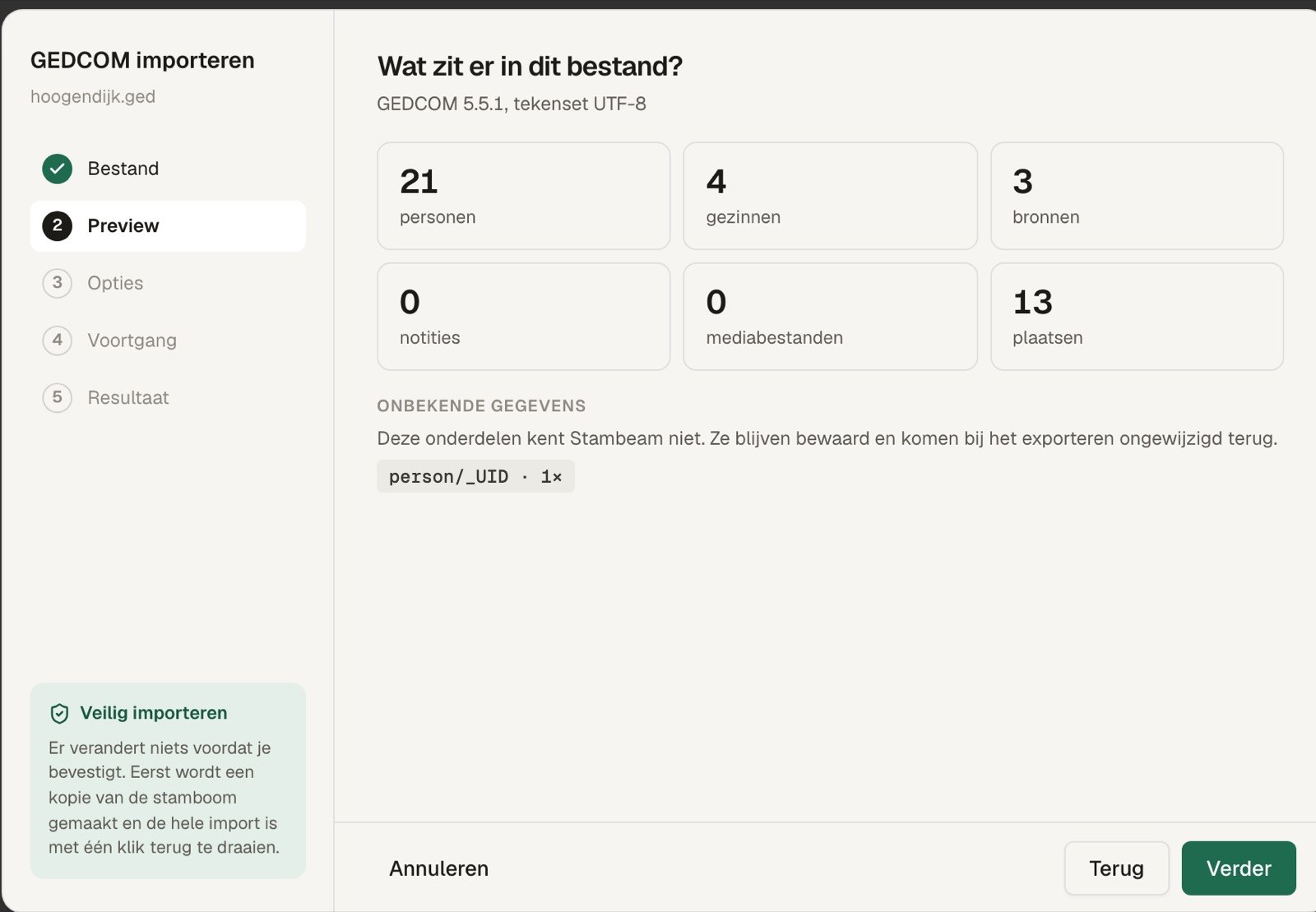
You see how many people, families, sources and photos are in it. Click Import; just before, Stambeam makes a copy of your tree. - 3Keep or undo.
If it looks right, carry on straight away. If not, everything is back the way it was.
Data Stambeam does not know is kept and goes along unchanged when you export to GEDCOM.
What Stambeam does differently
Your own tree, with a few new possibilities.
Try it with your own tree.
Try it free for 30 days